
The website feedback widget your clients will actually use
One script tag. Clients click the element they mean and leave a comment, with the page, browser and screen size attached. You get a task list, not an email thread.


From script tag to closed feedback in four steps
This is the whole loop on a real client project: install, collect, triage, and let the client see where things stand.
- Step 1
Install the widget
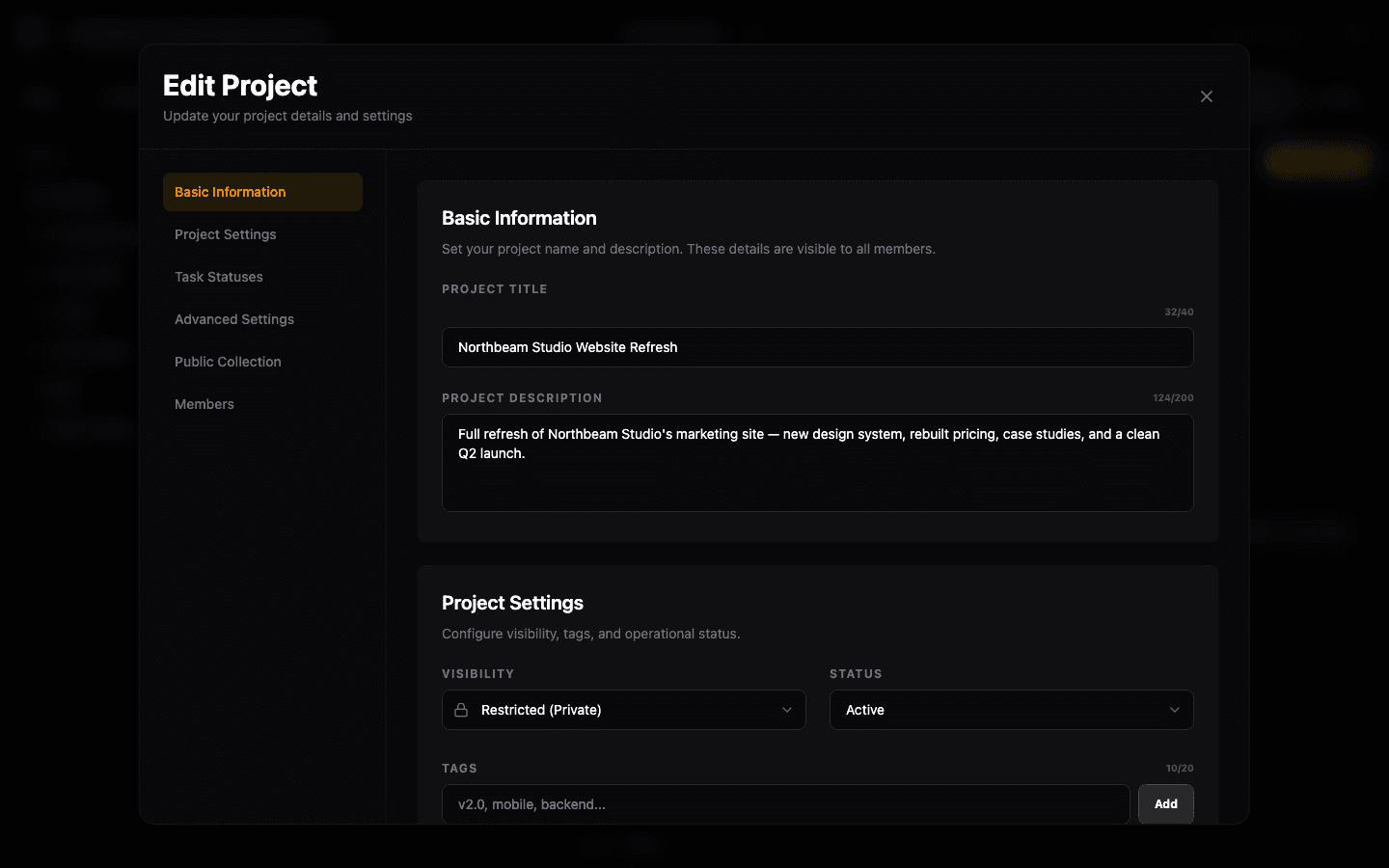
In the project's settings, open Public Collection, switch the widget on and list the domains allowed to load it. Then paste the script tag into your site, before the closing </body> tag or in the <head>. It works on any site where you can add a script tag: WordPress, Webflow, Shopify, a Next.js app or plain HTML.
<script
  src="https://feedbackhive.app/feedbackhive-widget.js"
  data-widget-key="YOUR_WIDGET_KEY"
  data-locale="en"
  async
></script>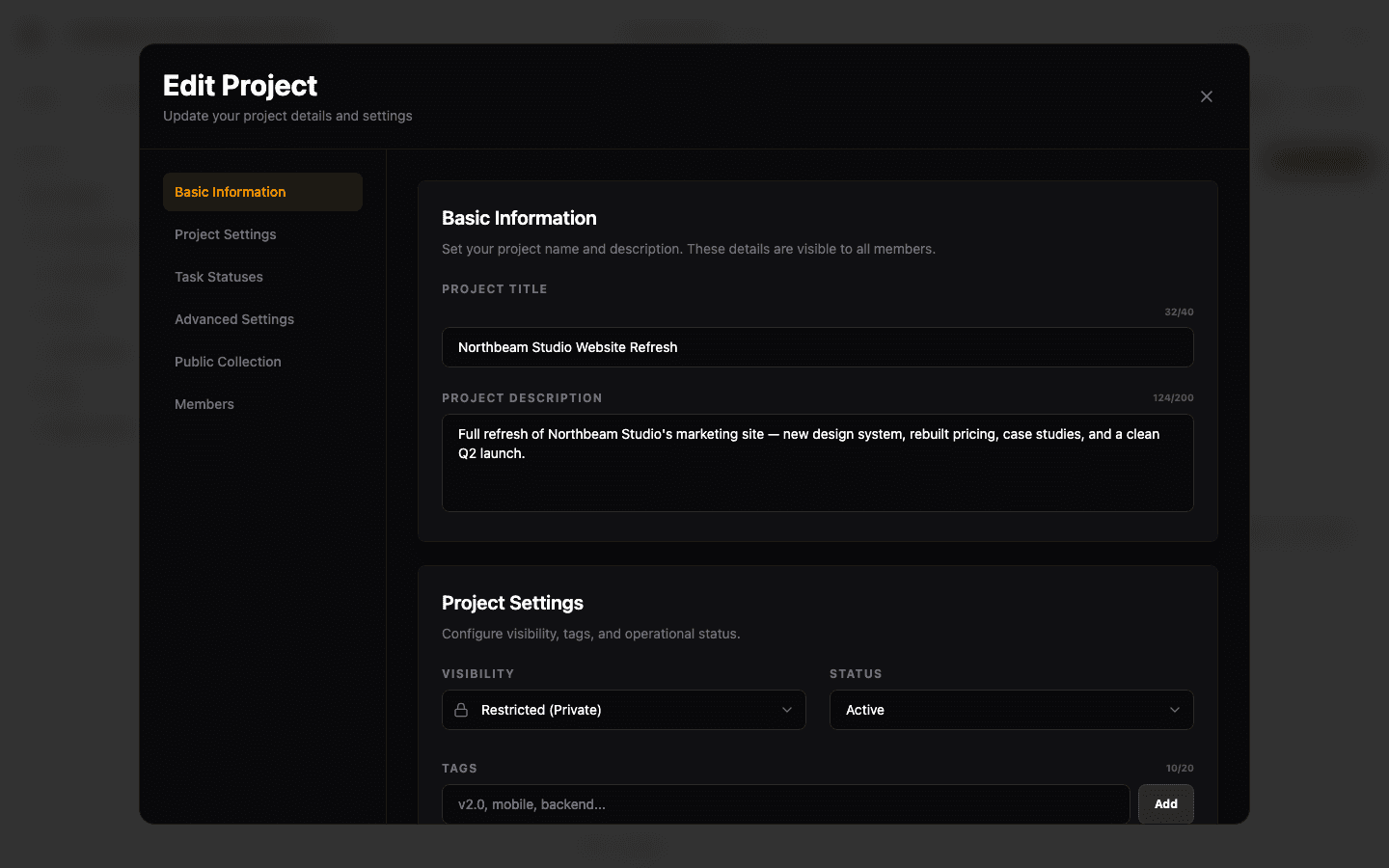
- Step 2
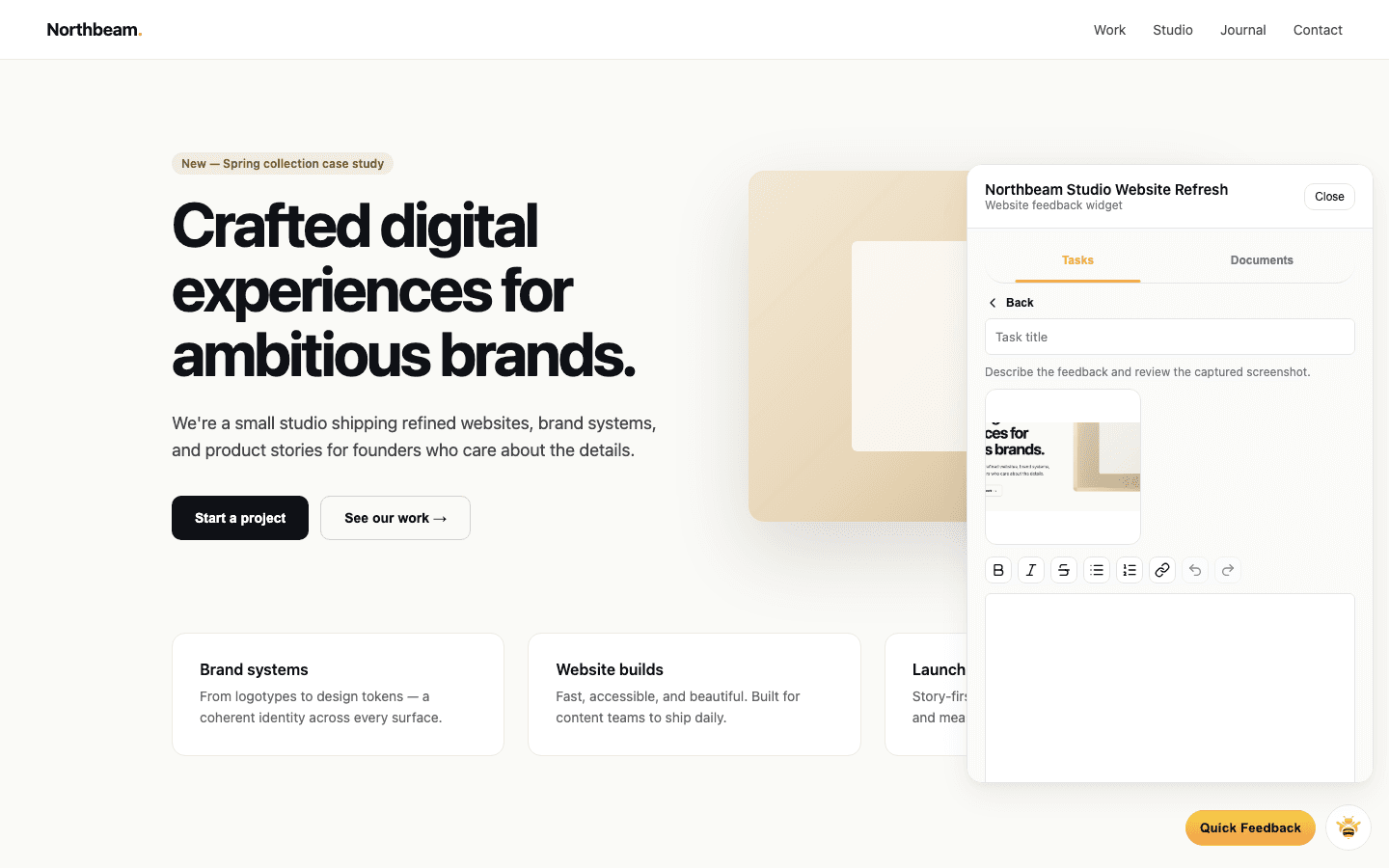
Collect the first comment
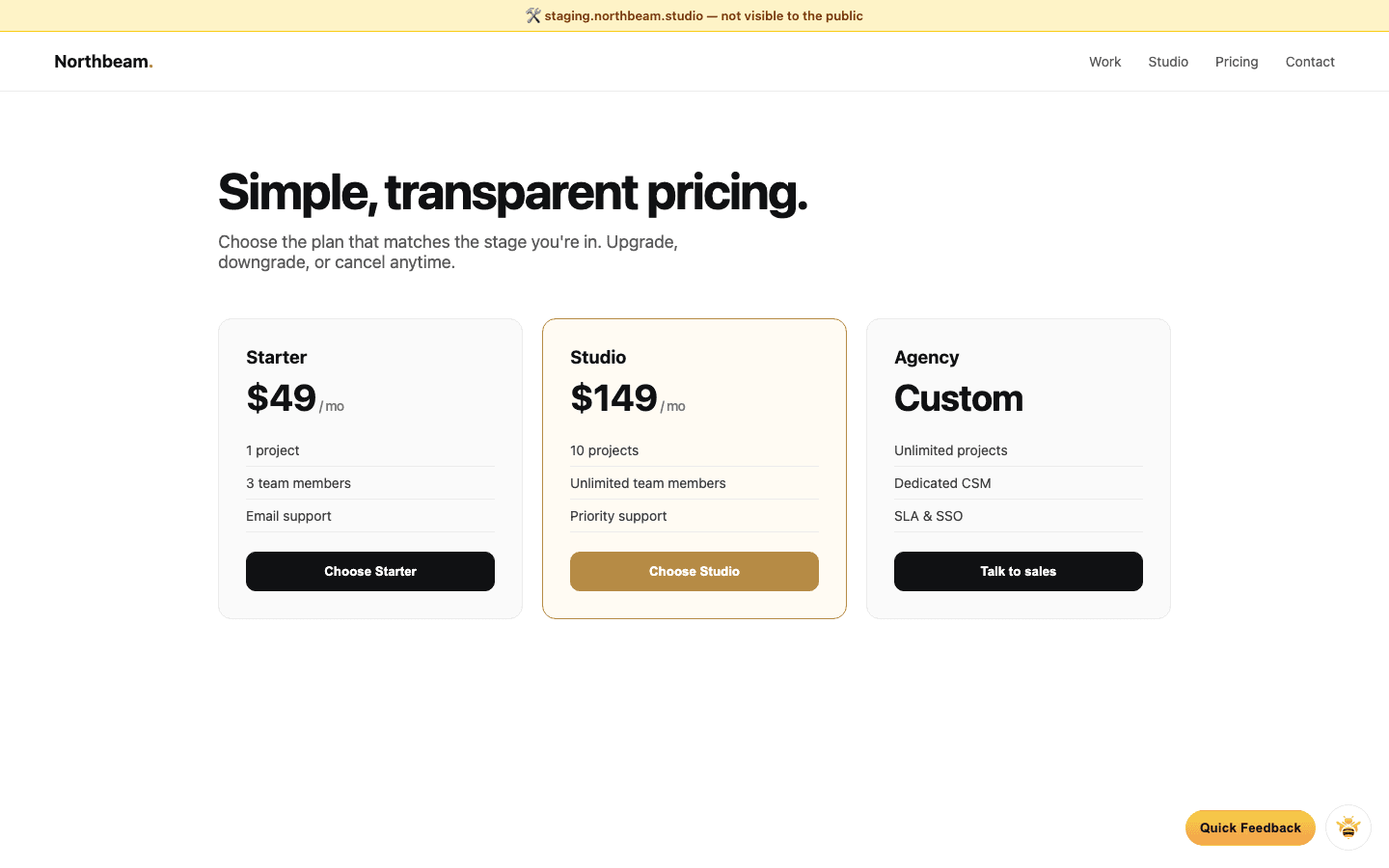
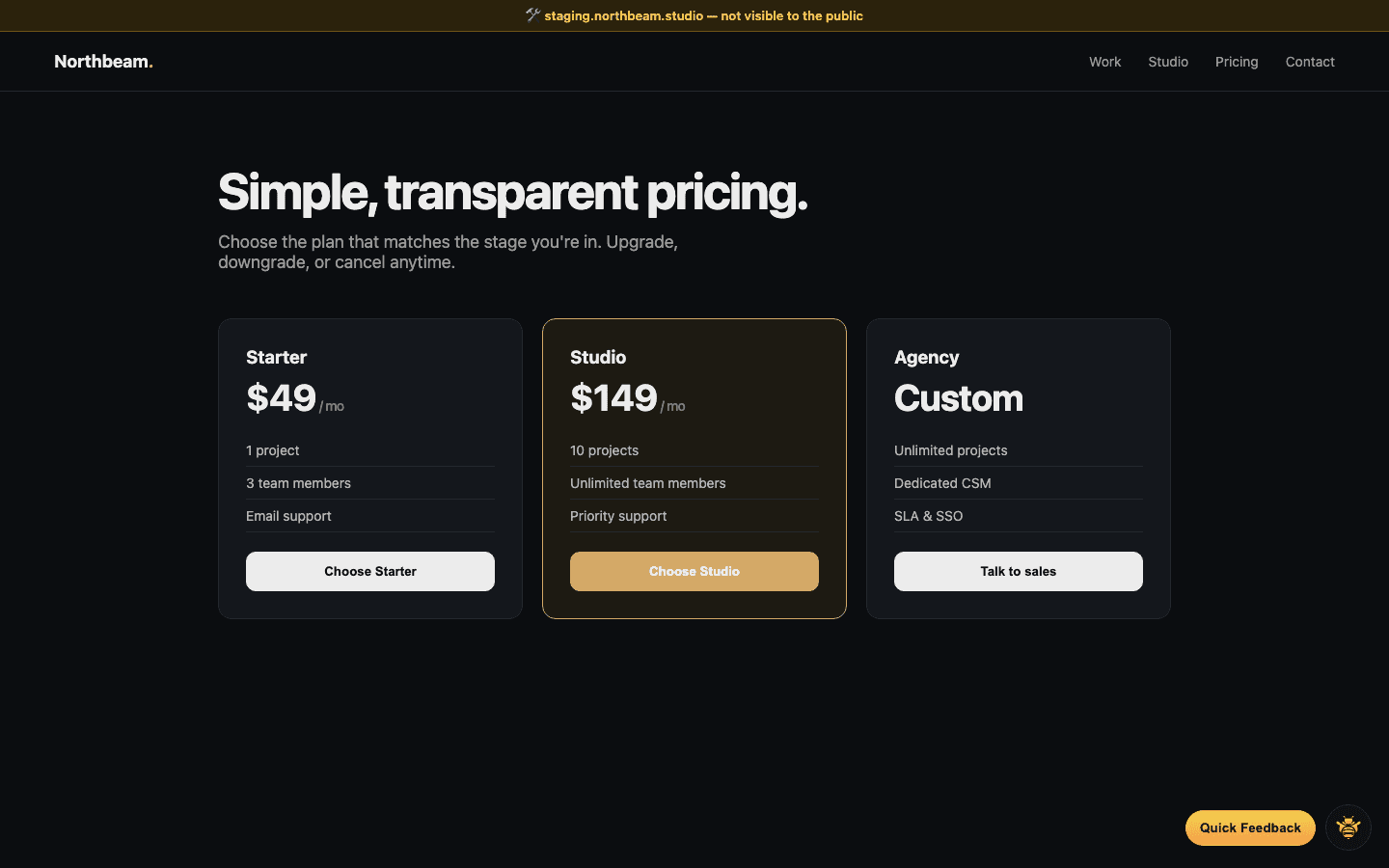
Your client opens the site and clicks the feedback button. They pick the element they mean, click a spot or drag over an area, type a comment and send it. No account is needed if you allow anonymous access: they give a name, and an email if they want.
- Step 3
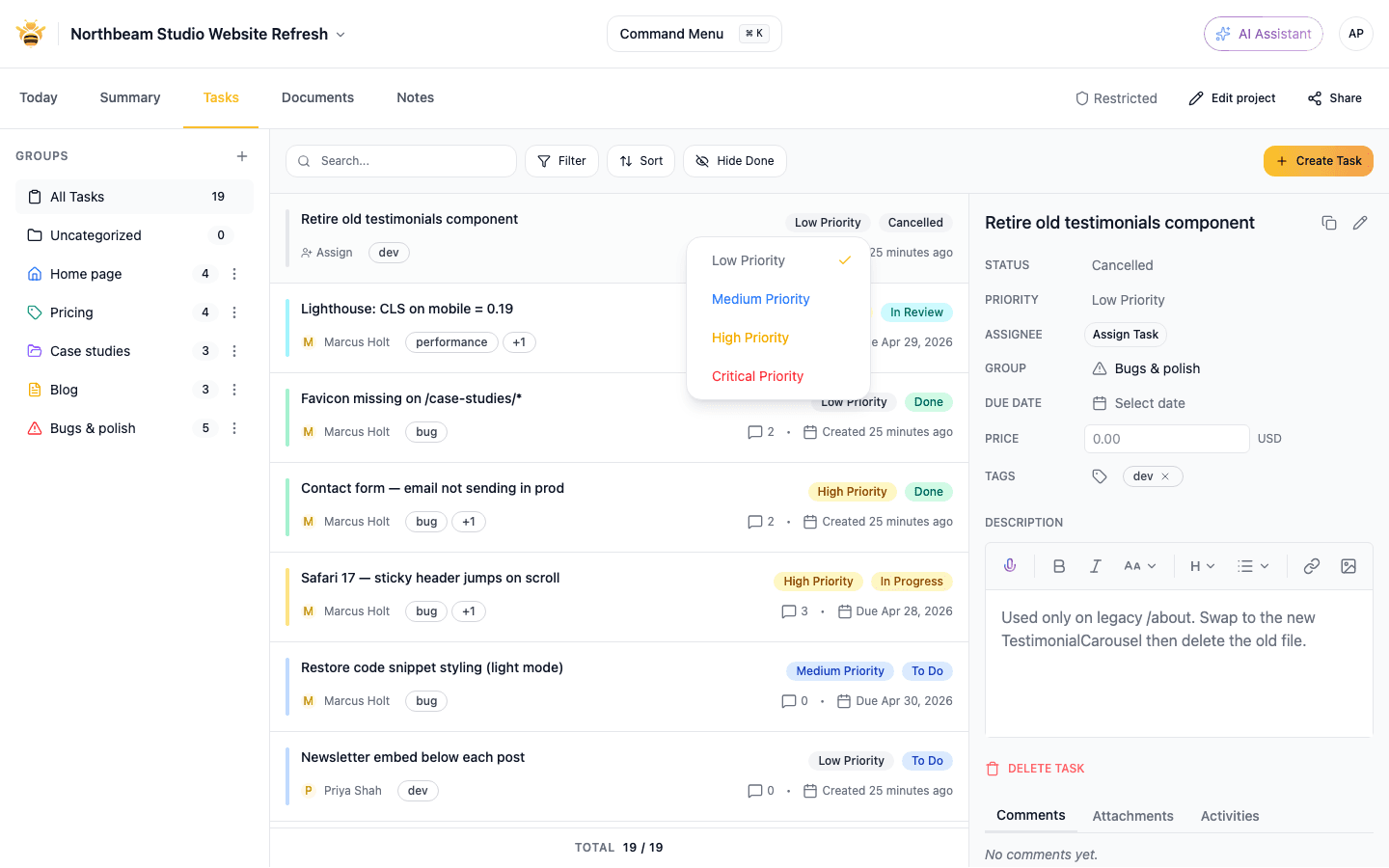
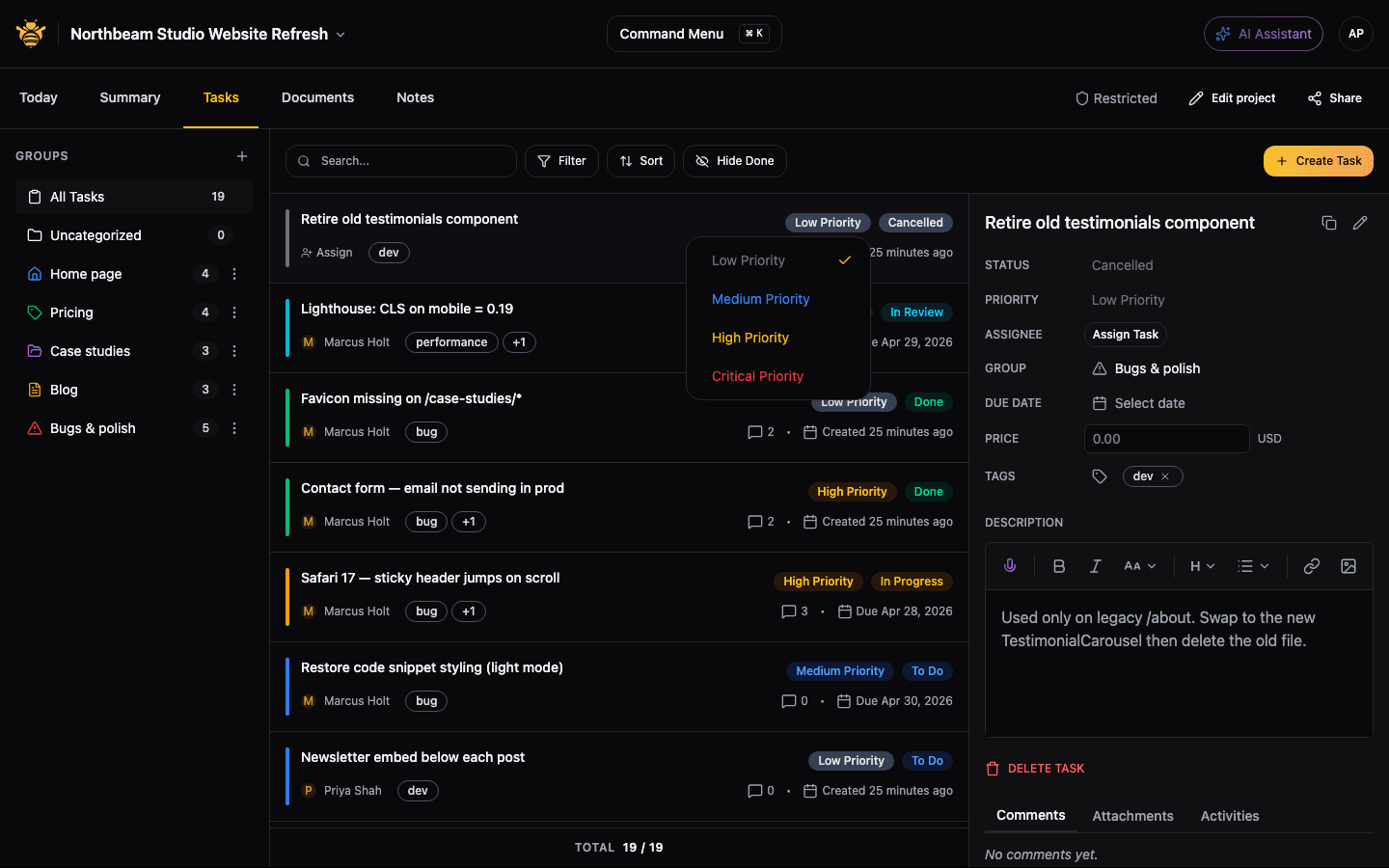
Triage it like any other task
The comment arrives as a task with the page URL, the browser, the OS and the screen size. Set a status and a priority, add tags, assign it to the person who will fix it and give it a due date.
- Step 4
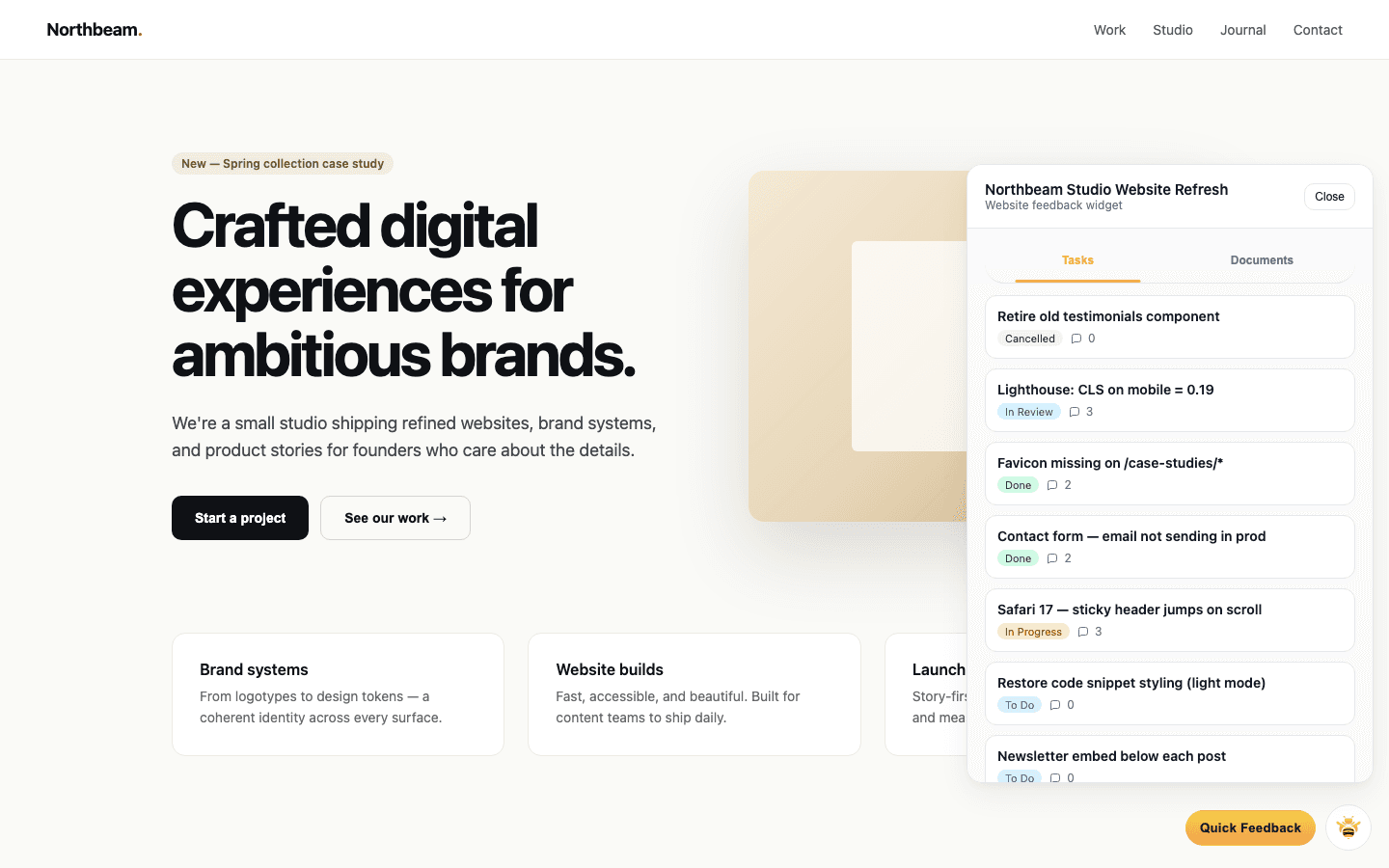
Let the client follow the status
With Read and submit access, the widget's panel lists the project's tasks and their status on the site itself. Clients see when their request moves to In Progress or Done without writing to ask.

Install once, collect from every page
The widget loads on every page of the domains you allow. No rebuild, no SDK, and nothing for your clients to install.

One script tag
Paste it once, on any stack that accepts a script.
Pinned to what they mean
An element, a spot or a dragged area, saved with the comment.
Context captured
Page URL and title, browser, OS, viewport and pixel ratio.
Every comment becomes a task you can act on
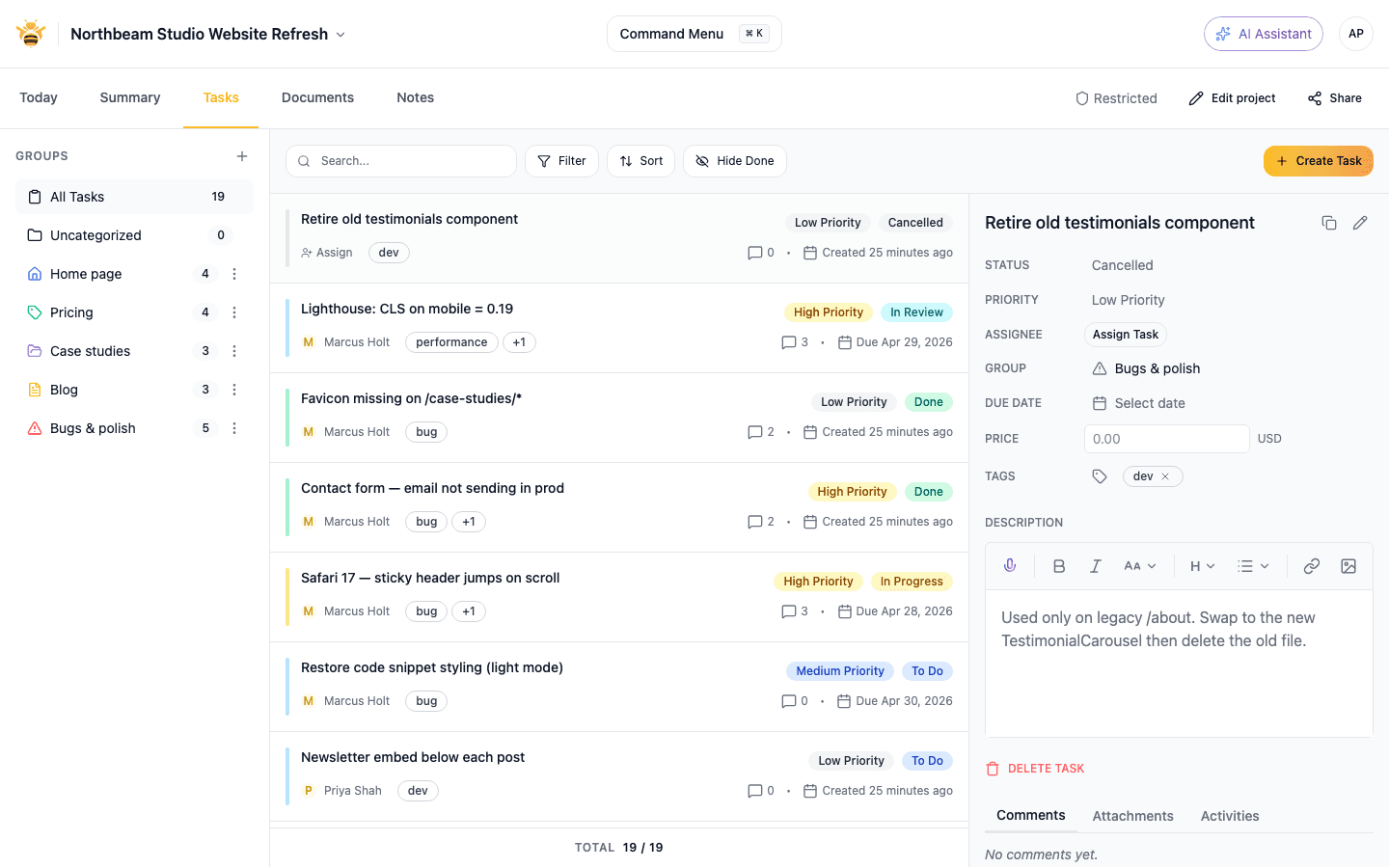
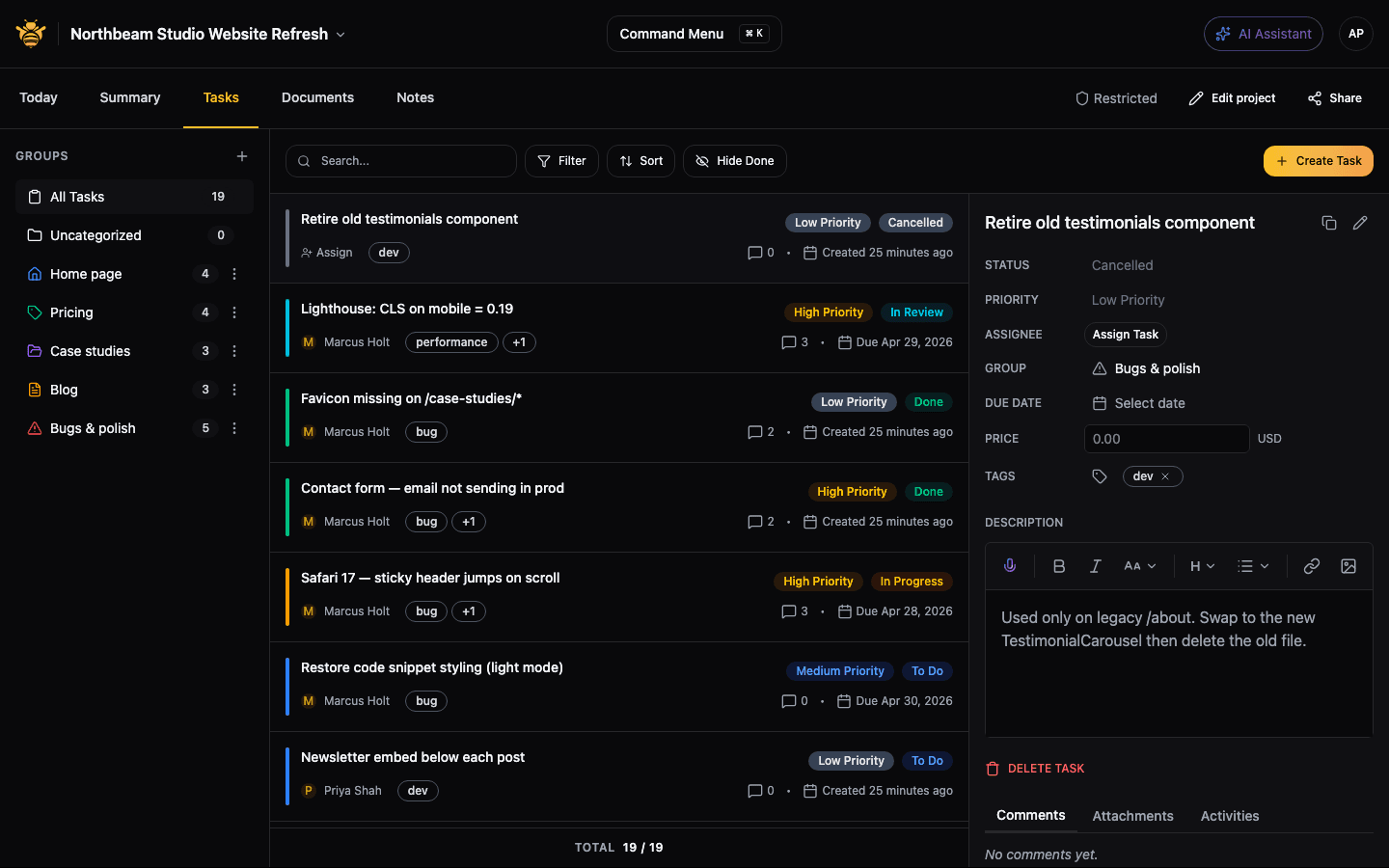
Feedback lands in the project's task list with a status, a priority, tags, an assignee and a due date.
Statuses you choose
Start from To Do, Blocked, In Progress, In Review and Done, or define your own.
One owner per task
Assign each task to the teammate who will fix it.
Screenshots and files
They stay on the task, next to the comments.
Know where each project stands
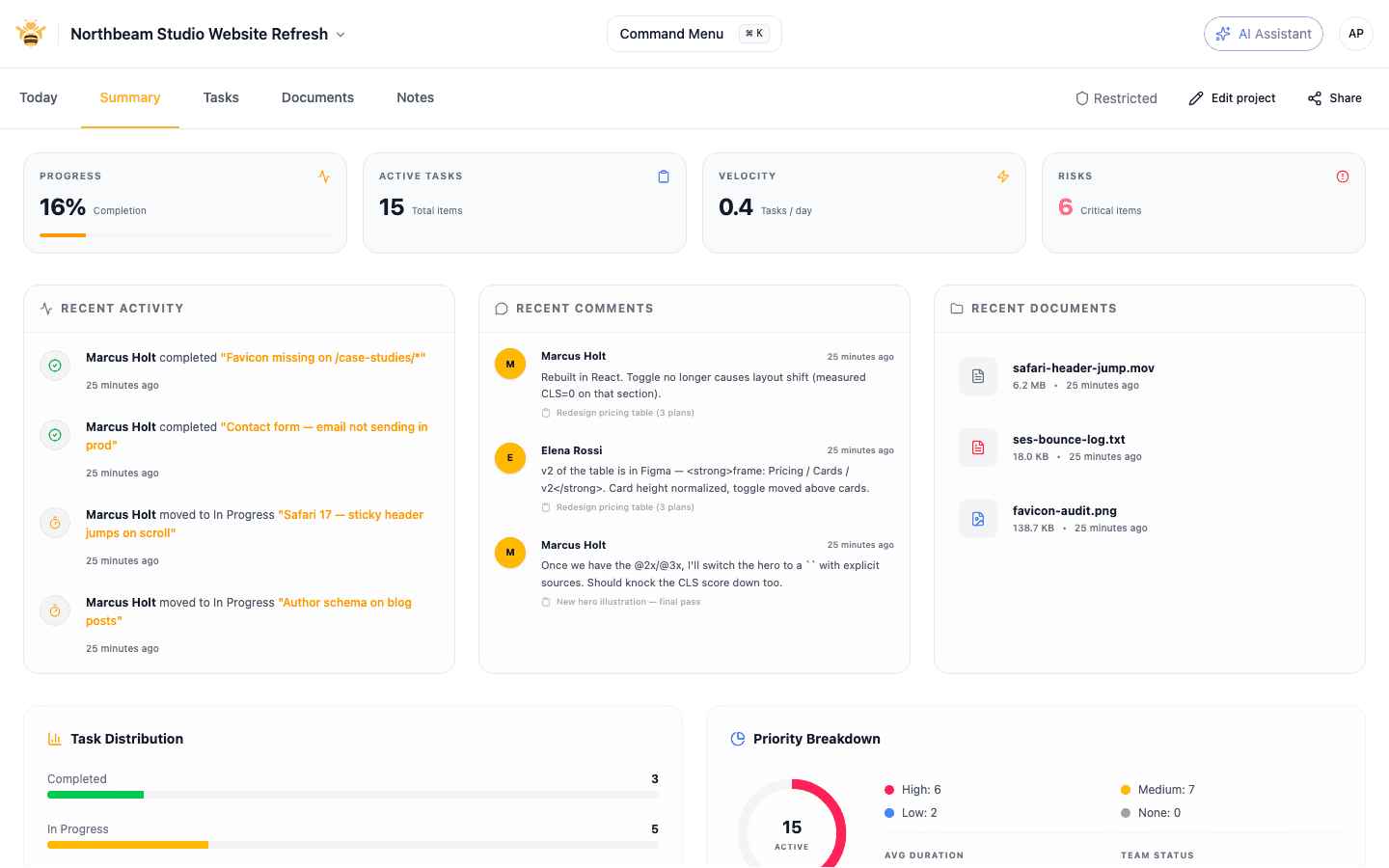
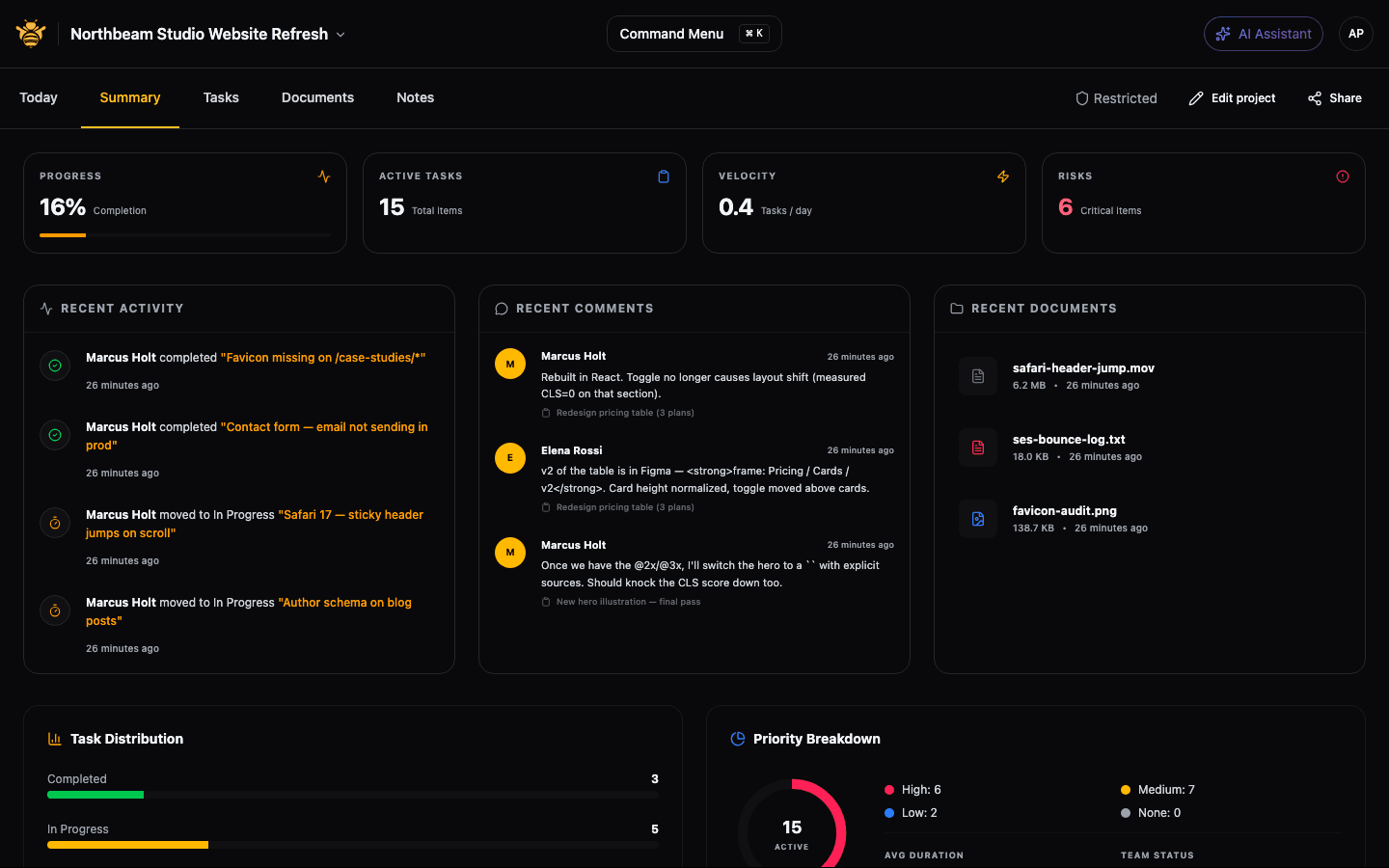
Every project has a summary: progress, recent activity and the latest comments, so you can answer a client in seconds.
Progress at a glance
Completion, active tasks and critical items.
Recent activity
Who moved or finished what, and when.
Recent comments
The latest discussion across the project's tasks.
What to look for in a website feedback widget
Most widgets capture a comment. The differences show up in the details that save you a round trip with the client.
Comments tied to the page
A comment that says "the button is wrong" is only useful if you know which button. Look for comments pinned to an element or an area, with the page URL saved, so you can open the exact spot the client saw.
Nothing for the client to install
Clients rarely install browser extensions or create accounts for a review. A widget that loads on the site itself, with optional anonymous feedback, gets more replies than a tool that asks them to sign up first.
Technical details you do not have to ask for
Browser, operating system and window size explain most "it looks broken on my side" reports. They should be captured automatically on every report, not requested in a follow-up email.
A real task list behind it
Collecting feedback is half the job. Statuses, priorities, assignees and due dates turn a pile of comments into work your team can plan, and a summary tells you how far along a project is.
A way for clients to see progress
Clients who can check the status of their request stop sending "any update?" emails. Check whether the tool shows them status on the site or in a shared view, and whether it costs you a seat.
Pricing that fits how you work
Some tools charge per member, others per project or per site. Count the people who need full access and the number of client sites you run at once, then compare. A free plan lets you test on a real project first.
When FeedbackHive is not the right fit
FeedbackHive keeps the feedback loop simple. Some teams need more than that, and other tools will serve them better.
You need tickets in Jira, Trello or Linear
FeedbackHive has no ready-made integration with issue trackers or Slack. Tasks live in FeedbackHive. The REST API, the MCP server and outbound webhooks on Pro let you build a connection, but nothing syncs out of the box.
You need video, console logs or session replay
The widget saves a comment, its position, a screenshot where the browser allows it, and the browser details. It does not record video, console output, network requests or sessions.
You cannot add a script to the site
There is no browser extension. If the client's site is locked down, you can share a feedback form link instead, but comments sent that way are not pinned to the page.
You need your own branding
No plan removes the FeedbackHive name or lets you put your logo on the widget. Agencies that must present a fully branded tool should look elsewhere.
You want to collect NPS or survey answers
FeedbackHive is built for review and change requests on a website, not for visitor surveys, ratings or satisfaction scores.
Website feedback widget: frequently asked questions
What is a website feedback widget?
It is a small script that adds a feedback button to a website. Reviewers click it, point at the part of the page they mean and leave a comment. The comment is saved with the page and browser details, so the team can find and fix the issue without a long email exchange.
How do I add a feedback widget to my website?
Create a project in FeedbackHive, open its settings, go to Public Collection, switch the widget on and add the domains that may load it. Copy the script tag that appears and paste it into your site's HTML, theme or custom-code setting. The widget shows up on the next page load.
Do clients need an account to leave feedback?
Not if you allow it. Each project has an anonymous access setting: Off (reviewers sign in), Submit only (guests can send feedback), or Read and submit (guests can also browse tasks and comments). Guests type a name, and an email address if they want to.
Can I use the widget on a staging site or on localhost?
Yes. The widget only loads on the domains you list, and the list accepts wildcards such as *.example.com and a host with a port, such as localhost:3000. Add your staging domain or tunnel address next to the production domain.
Will the widget slow down my site?
The script tag uses the async attribute, so the browser downloads it without pausing the rendering of your page. Test it on your own site: add it to a staging copy first and compare.
Does the widget take screenshots?
Yes, with limits. When a reviewer picks an element, the widget attaches a screenshot of it. When they click a spot or drag over an area, it attaches a screenshot in desktop Chrome and Edge after the browser asks for permission; other browsers save the comment and its position without one. Reviewers can remove a screenshot before sending.
Which languages does FeedbackHive support?
The FeedbackHive app is available in English, French, German, Spanish and Italian. The widget's own buttons and labels are in English for now.
How much does it cost?
The Free plan covers 1 project for one person, with 100 feedback items a month. Basic costs $29 a month for 5 projects and 2 collaborators per project. Pro costs $79 a month and adds unlimited collaborators, WhatsApp feedback and outbound webhooks.
Start collecting website feedback today
Free for one project. No credit card required.