
Every bug report, with the context developers need
Reporters point at the problem on the page. The page URL, browser, OS and viewport are attached automatically, so your developers can start fixing instead of asking questions.
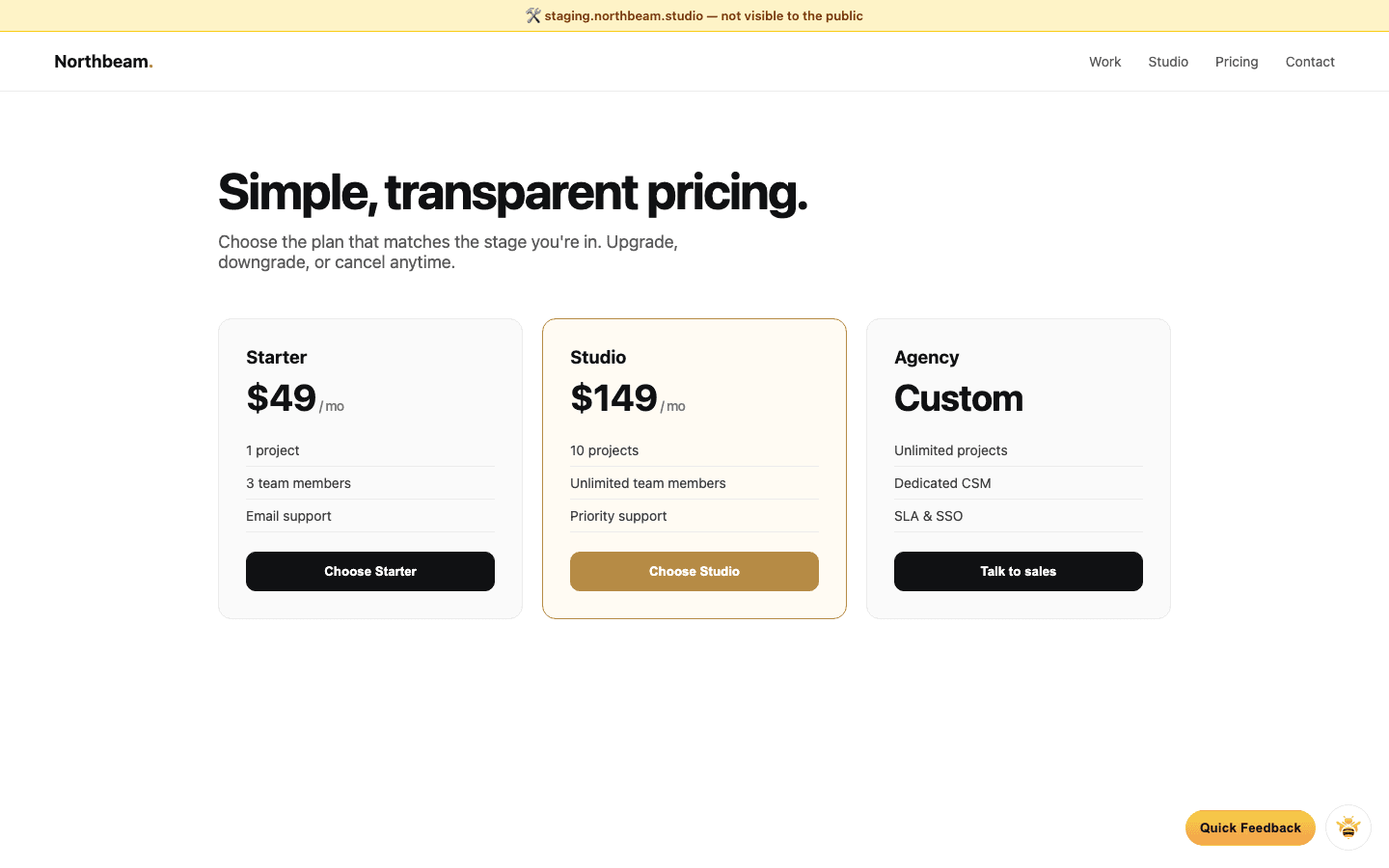
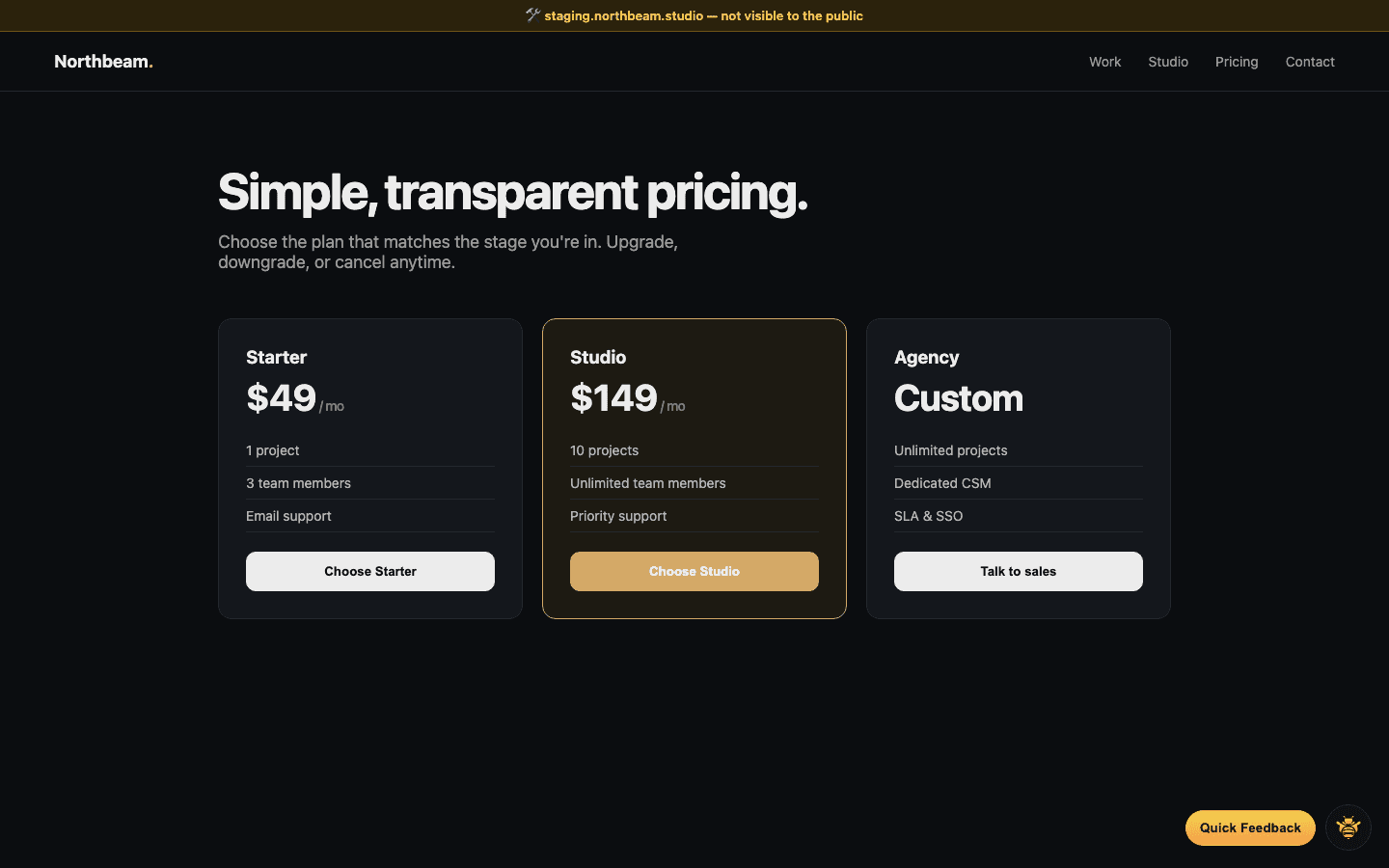
A bug reporting workflow in four steps
Use it for client QA before launch, for internal testing on staging, or as a permanent "report a problem" button on a live site.
- Step 1
Add the widget to the site
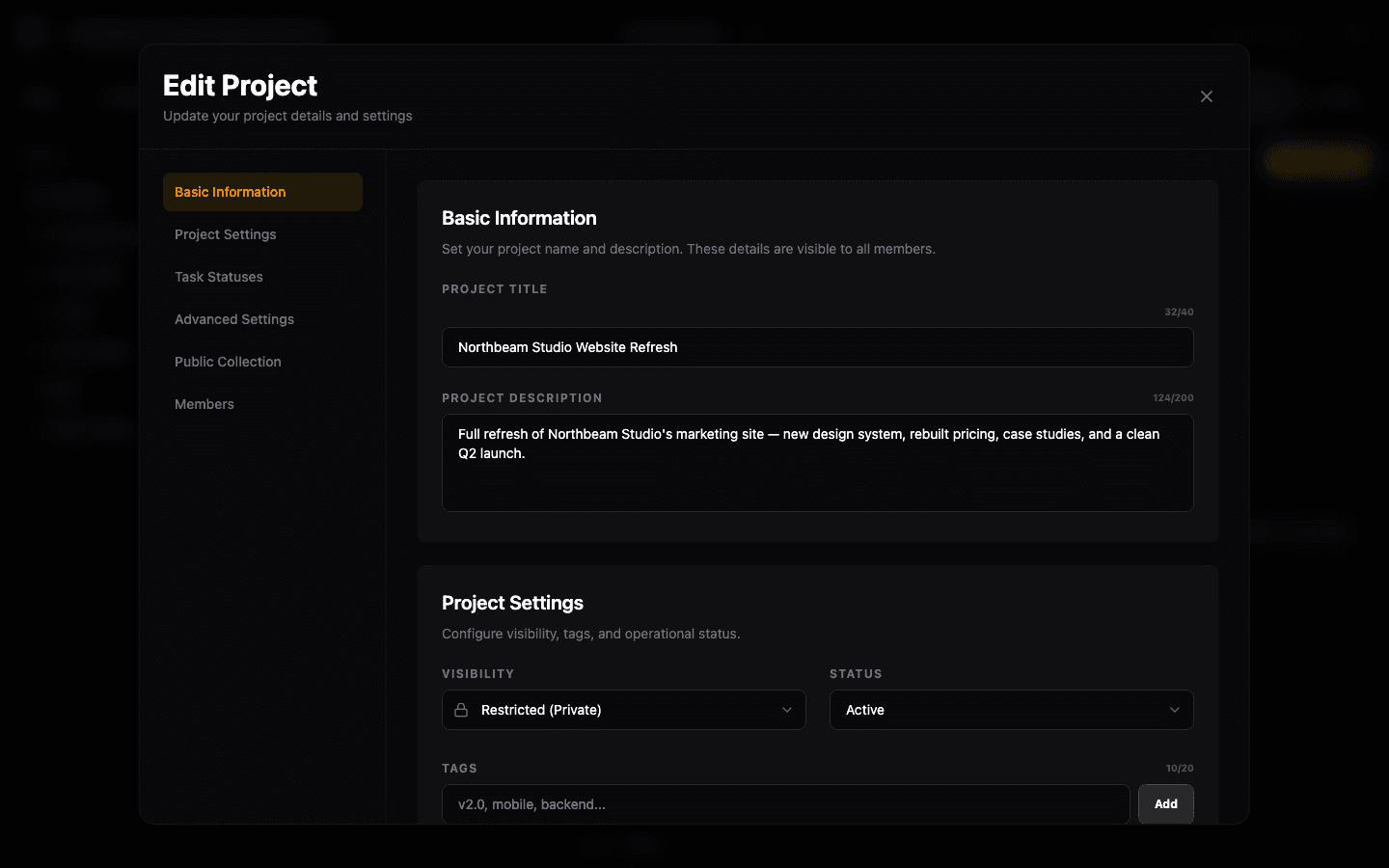
In the project's settings, open Public Collection, switch the widget on and list the domains allowed to load it. Then paste the script tag into your site, before the closing </body> tag or in the <head>. Add your staging and production domains, so the same project collects reports from both.
<script
  src="https://feedbackhive.app/feedbackhive-widget.js"
  data-widget-key="YOUR_WIDGET_KEY"
  data-locale="en"
  async
></script>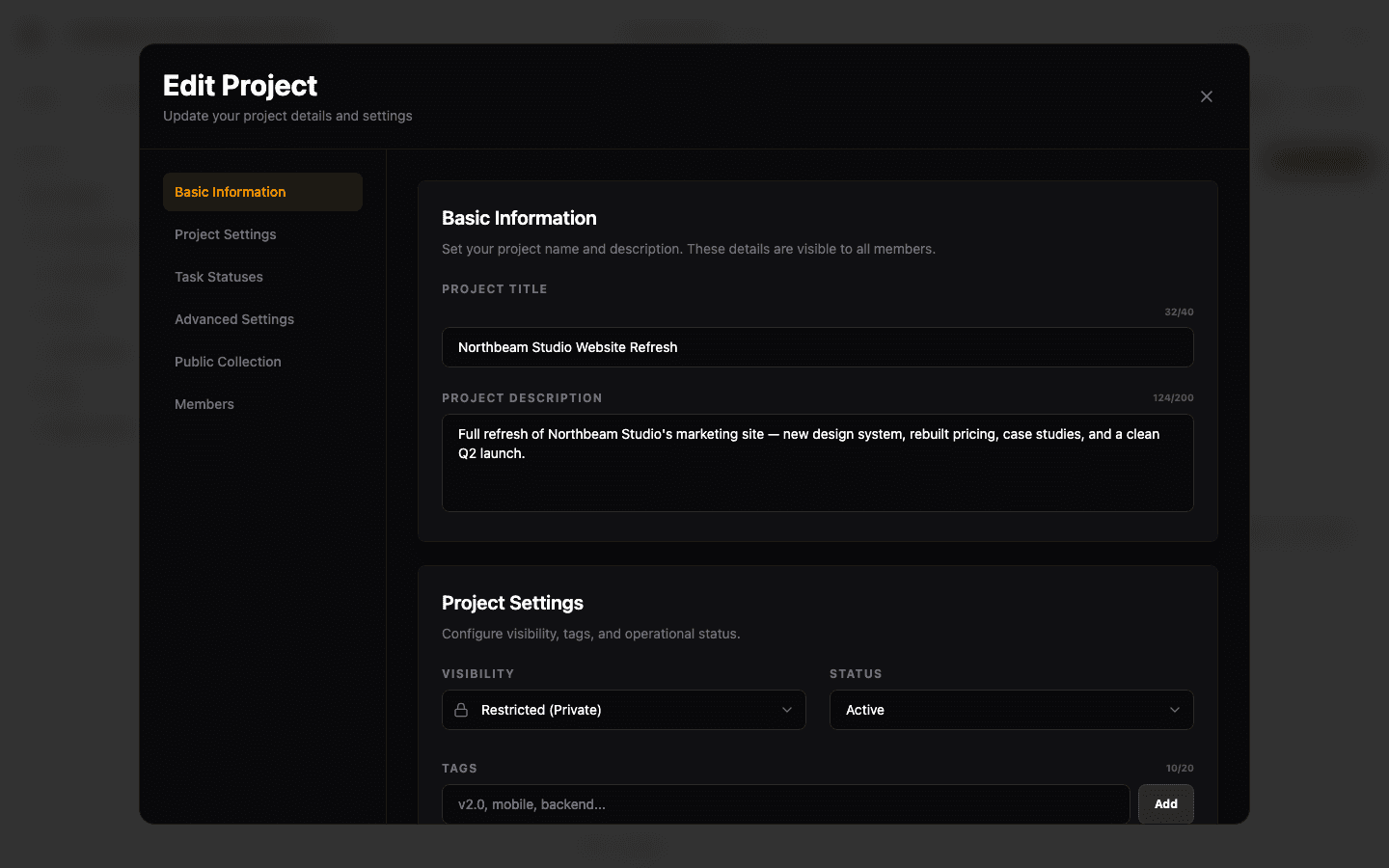
- Step 2
A tester reports the bug
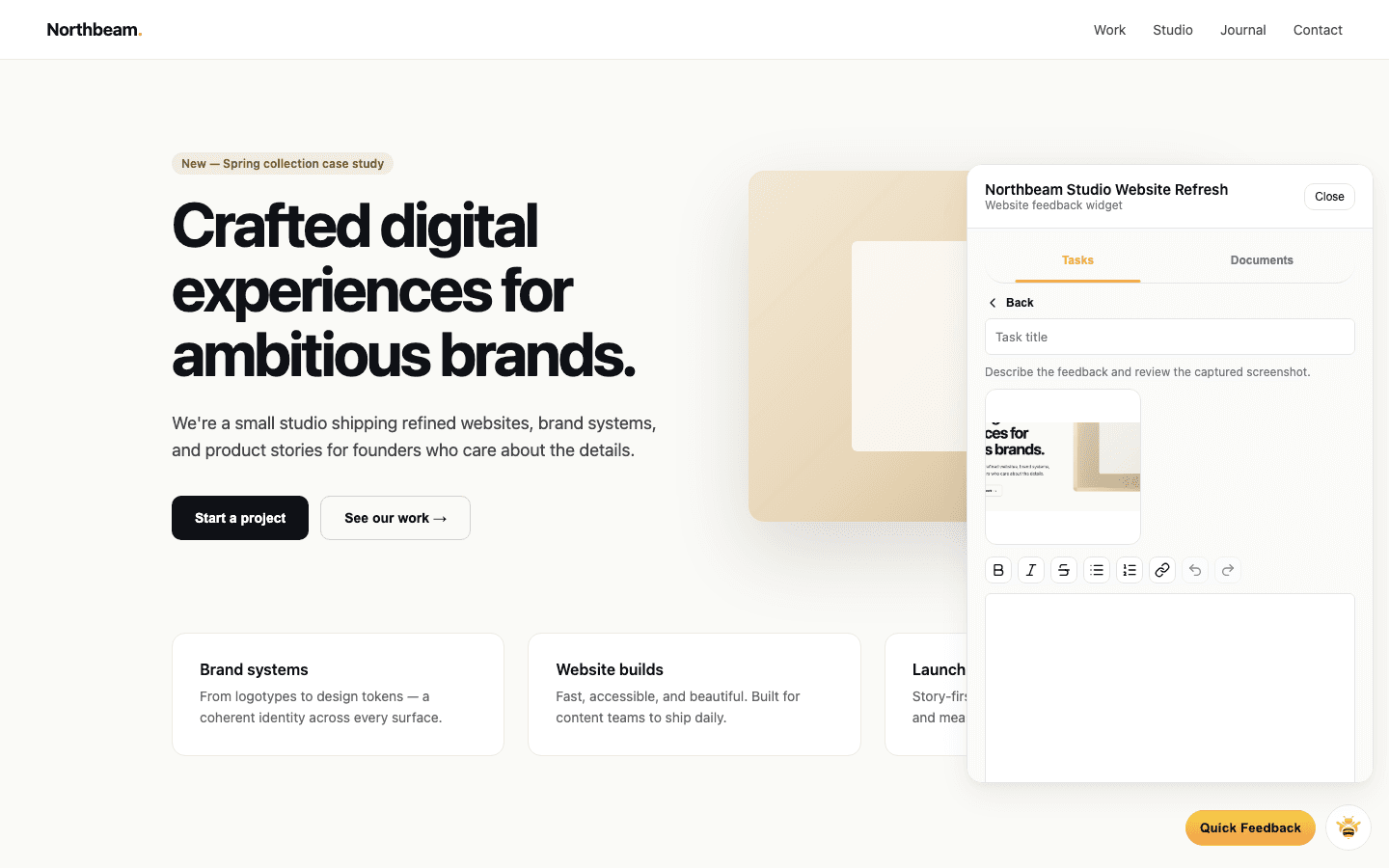
The tester clicks the feedback button, then the broken element, a spot or an area, and describes what went wrong. The report keeps that position, the page URL and title, the browser, the OS, the viewport and the pixel ratio.


- Step 3
Triage by priority
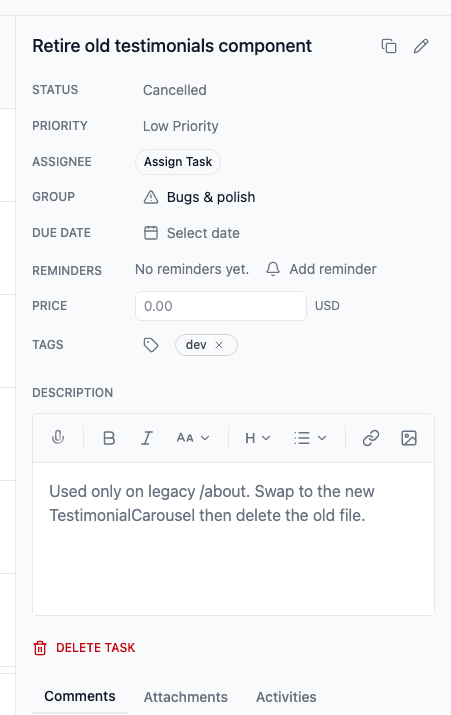
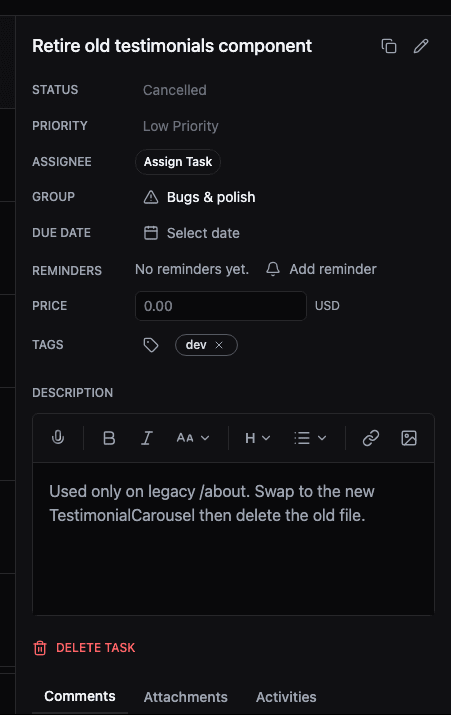
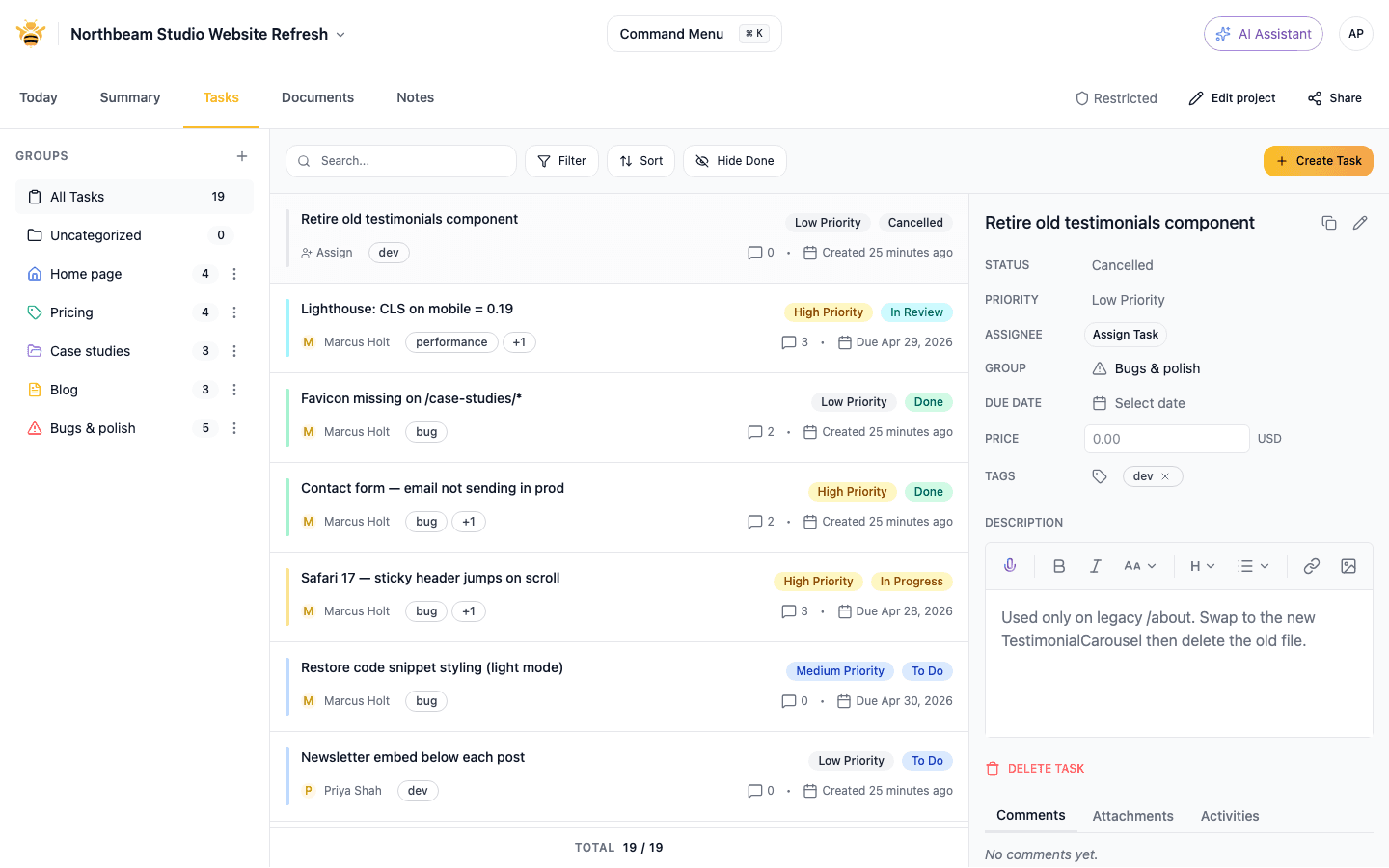
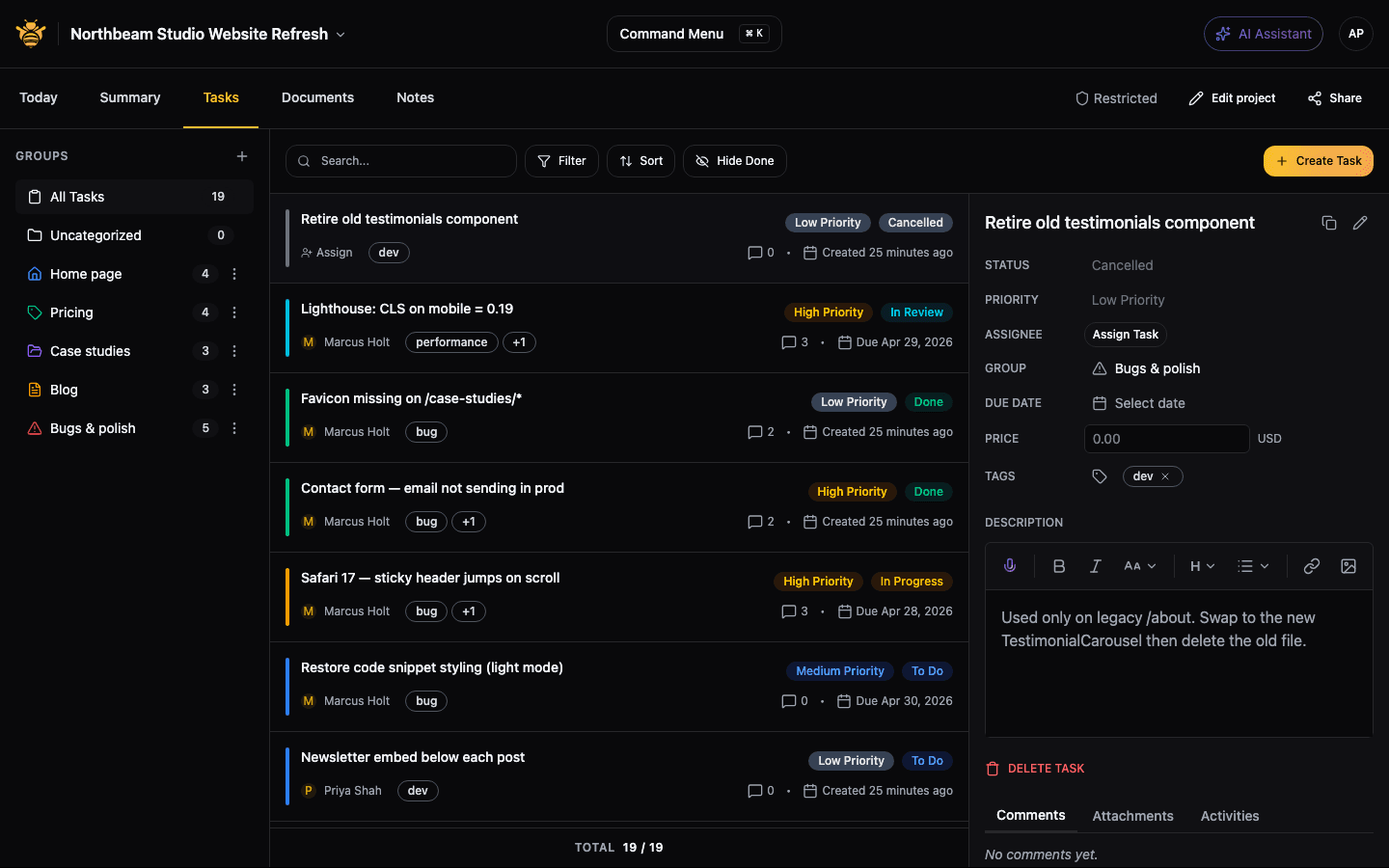
Each report becomes a task. Mark it critical, high, medium or low, tag it, put it in a group such as "Bugs and polish", assign it to a developer and set a due date. Filter and sort the list to plan the next fixes.
- Step 4
Close the loop with the reporter
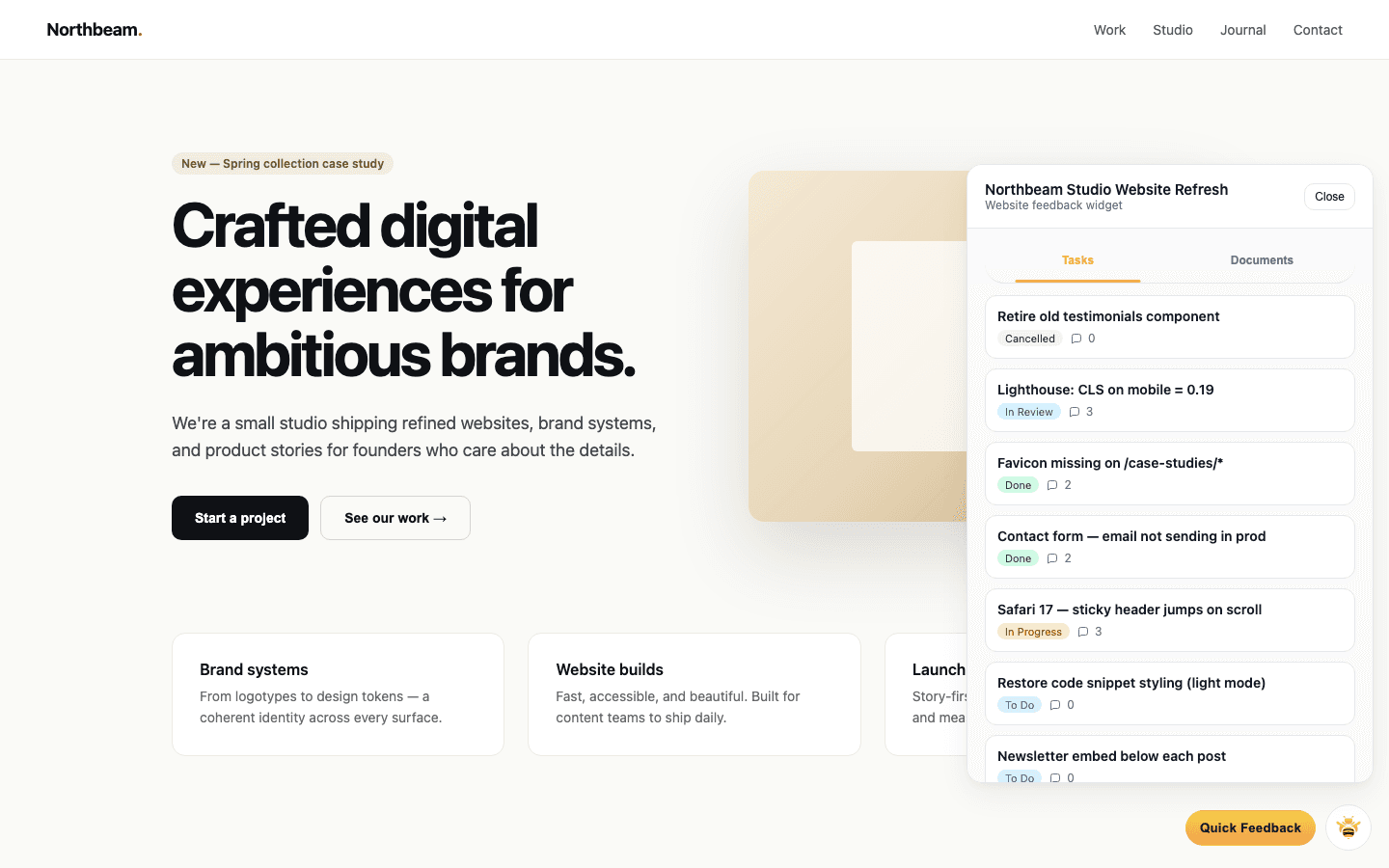
Move the task to In Review or Done when the fix ships. With Read and submit access, the widget on the site lists each task with its status, so testers can check what was fixed and test again.

From "something broke" to a report you can act on
Reporters show the problem instead of describing it. The widget takes care of the details they would forget.

Embedded widget
A floating button on the site, nothing to install for testers.
Screenshot attached
Of the element, or of the page in desktop Chrome and Edge.
Pin the exact element
Click what is broken and the report points right at it.
The details developers need to reproduce
Stop asking "which browser were you using?". The widget records it with every report.
Browser, OS, viewport
Captured automatically on every report.
Page URL and title
The exact page where the bug happened.
Exact location
The element, the click position or the selected area.
From bug report to shipped fix
Prioritize, assign and track fixes in the same place the reports arrive.
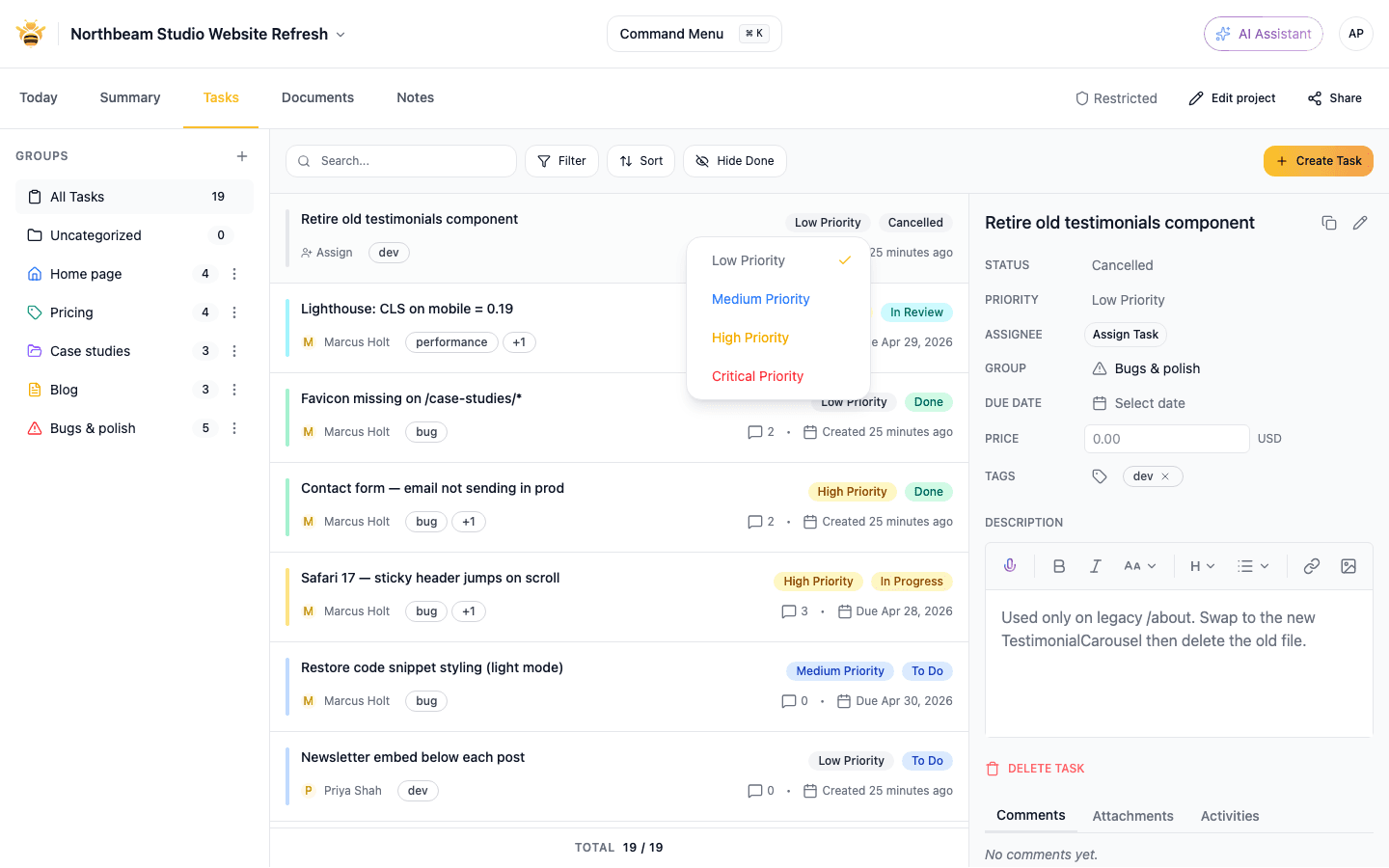
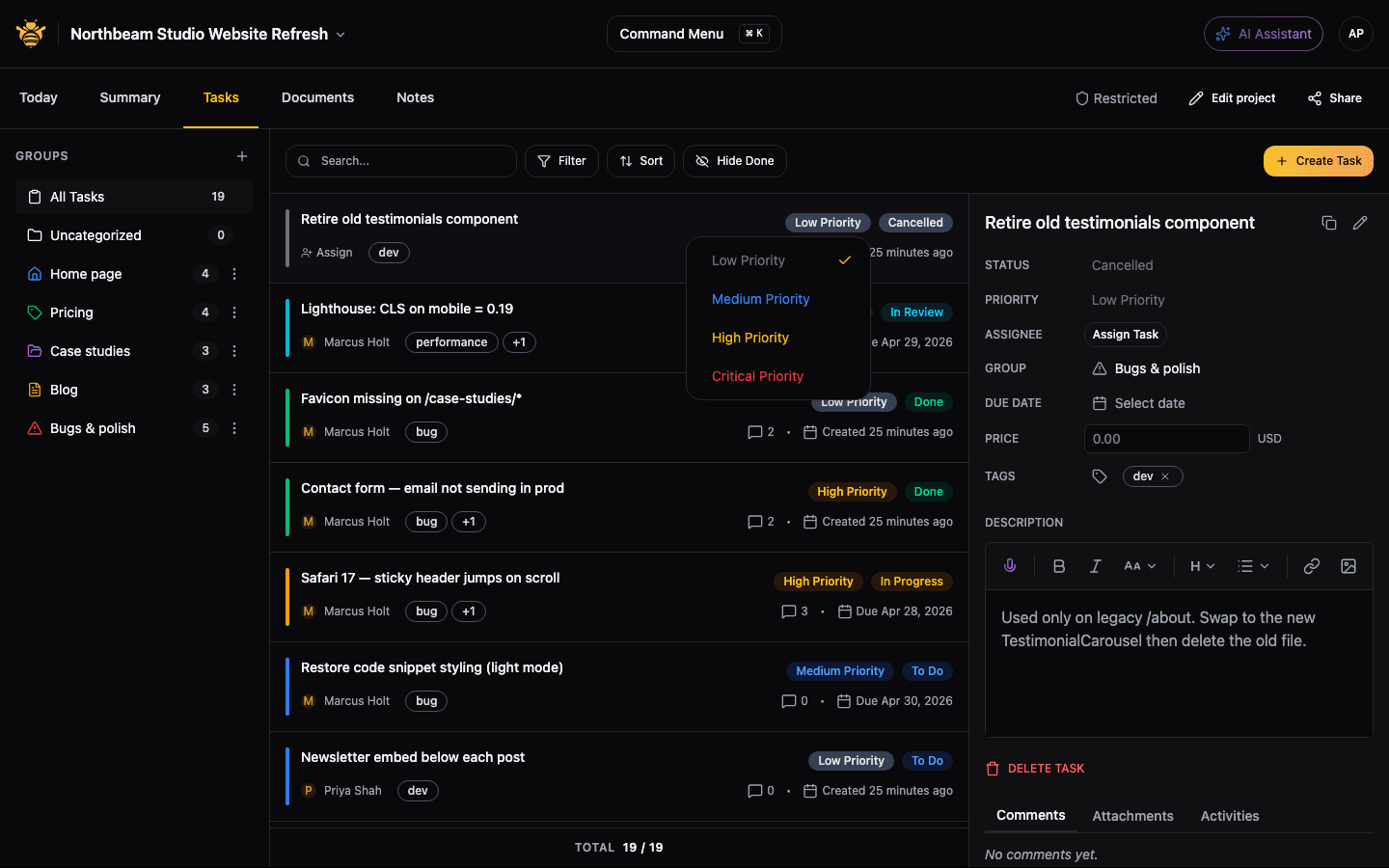
Four priority levels
Critical, high, medium and low.
Assign to developers
Route each bug to the right person.
Status the reporter can see
Listed in the widget when you allow it.
What makes a good bug report
A useful report answers the questions a developer would otherwise ask. The widget fills in most of them for you.
Where it happened
The page URL and the element or area involved. FeedbackHive saves both, so a developer can open the same page and look at the same spot.
What the reporter saw
A screenshot settles most disagreements about what is on screen. FeedbackHive attaches one when the browser allows it, and the reporter can add a description in their own words.
On which device
Many bugs only appear in one browser or at one screen width. Browser, OS, viewport and pixel ratio are recorded on every report, without asking the reporter.
How urgent it is
A broken checkout is not a typo. Priorities from critical to low, plus a due date, keep the team on the bugs that matter before launch.
Who owns it
A report without an owner waits. Assign each task to one person, and use the Today view to see what is overdue, due today or high priority across all your projects.
What happened next
Reporters want to know their bug was fixed. Statuses such as In Review and Done, shown in the widget, let them check and test again.
When FeedbackHive is not the right fit
FeedbackHive is a lightweight bug reporting tool for websites. It is honest to say what it leaves out.
You need console logs or network requests
The widget does not capture JavaScript console output, failed requests or session replays. Tools built for developer debugging collect those.
Your bugs must land in Jira or GitHub
There is no built-in sync with issue trackers. Reports stay in FeedbackHive. Outbound webhooks on Pro, the REST API and the MCP server can feed another system, but you build that link yourself.
You test native mobile apps
The widget runs in web pages. It does not report bugs from iOS or Android apps.
You need screen recordings
Reports carry a screenshot, not a video. If your testers explain bugs best by recording their screen, pick a tool with video capture.
Bug reporting widget: frequently asked questions
What is a bug reporting widget?
It is a button you add to a website so testers, clients or users can report a problem from the page where it happens. The report is saved with the page, the position on the page and technical details, then turned into a task for the team.
What information is attached to each bug report?
The page URL and title, the element, spot or area the reporter picked, the browser and operating system, the viewport size and the pixel ratio. A screenshot is added when the browser supports it, along with the reporter's description.
Can testers report bugs without creating an account?
Yes, if you turn on anonymous access for the project. Guests enter a name, and an email address if they choose. You can also keep the widget for signed-in team members only.
Does it capture console logs or record the session?
No. FeedbackHive records the page, the position and the browser details, plus a screenshot where possible. It does not capture console output, network requests, video or session replays.
Can I use it on staging before launch?
Yes. Add your staging domain to the project's allowed domains. Wildcards such as *.example.com work, and so does a host with a port, such as localhost:3000.
Can bug reports be sent to another tool?
There is no ready-made Jira, GitHub or Slack integration. On Pro, outbound webhooks send signed events when a task is created, updated, changes status or gets a comment, and the REST API and MCP server let you read and update tasks from your own scripts.
Can I use it for user acceptance testing (UAT)?
Yes. Install the widget on the staging site, give testers Submit only access and ask them to report every issue they find. Each report becomes a task with the page and browser details, and with Read and submit access testers can check what has been fixed before sign-off.
Is there a free plan?
Yes. The Free plan covers 1 project for one person and 100 feedback items a month. Basic costs $29 a month and lifts the feedback limit.
Ship fewer bugs by reporting them better
Add the widget to your staging site today.